How to save a WebP image as PNG or JPG in Chrome
Chrome keeps downloading pictures as .webp files that won't open? Here are three ways to save them as PNG or JPG – the fastest takes one right-click.
Many websites now serve their images in the WebP format because the files are smaller. When you right-click › “Save image as”, Chrome saves the file exactly as it arrived – so you end up with a .webp that some apps, older Windows photo viewers, print shops and upload forms refuse to open.
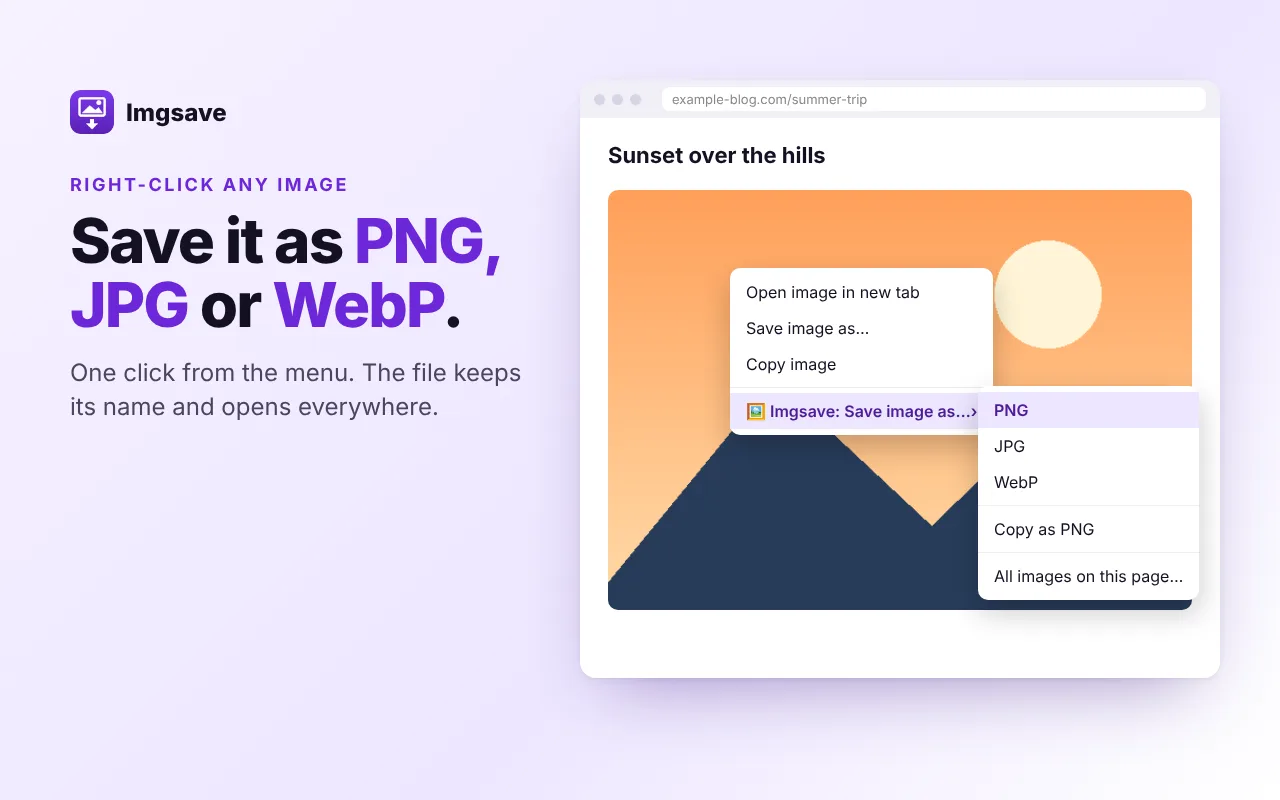
1. The fastest way: one right-click (Imgsave)
- Install the free Imgsave extension.
- Right-click the image › Imgsave: Save image as… › PNG or JPG.
- The converted file is in your Downloads folder, with its original name.
Prefer to paste it somewhere? Choose Copy as PNG and paste it into a document, an email or a chat. Everything is converted on your computer: nothing is uploaded.
2. Without installing anything: open it in Paint or Preview
- Windows: open the .webp file with Paint › File › Save as › PNG or JPEG.
- Mac: open it with Preview › File › Export › choose PNG or JPEG.
It works, but it takes a minute for every image, and you first have to download the WebP.
3. Online converters
Websites that convert WebP to PNG work too, but you upload your image to someone else's server and wait for the download. Fine for a public photo; not ideal for anything private.
PNG or JPG: which one?
- PNG – keeps transparency and sharp edges. Best for logos, icons, screenshots and graphics.
- JPG – smaller files, opens everywhere. Best for photos. Transparent areas become white.
Need every image on the page?
Click the Imgsave icon › Save all images on this page to see them all with their sizes and save the ones you want, or follow our guide on downloading all images from a web page.
Save only images you have the right to use.

Imgsave adds “Save image as PNG / JPG / WebP” and “Copy as PNG” to Chrome's right-click menu – free and private.